
Cabling a floor by hand means one drag per device: forty access points and cameras, forty cables, and a guess each time at which switch is closest. Autoconnect does the whole floor in one click. Each device is cabled to the switch or rack its cable would be shortest to, along the trays and conduits you already drew.
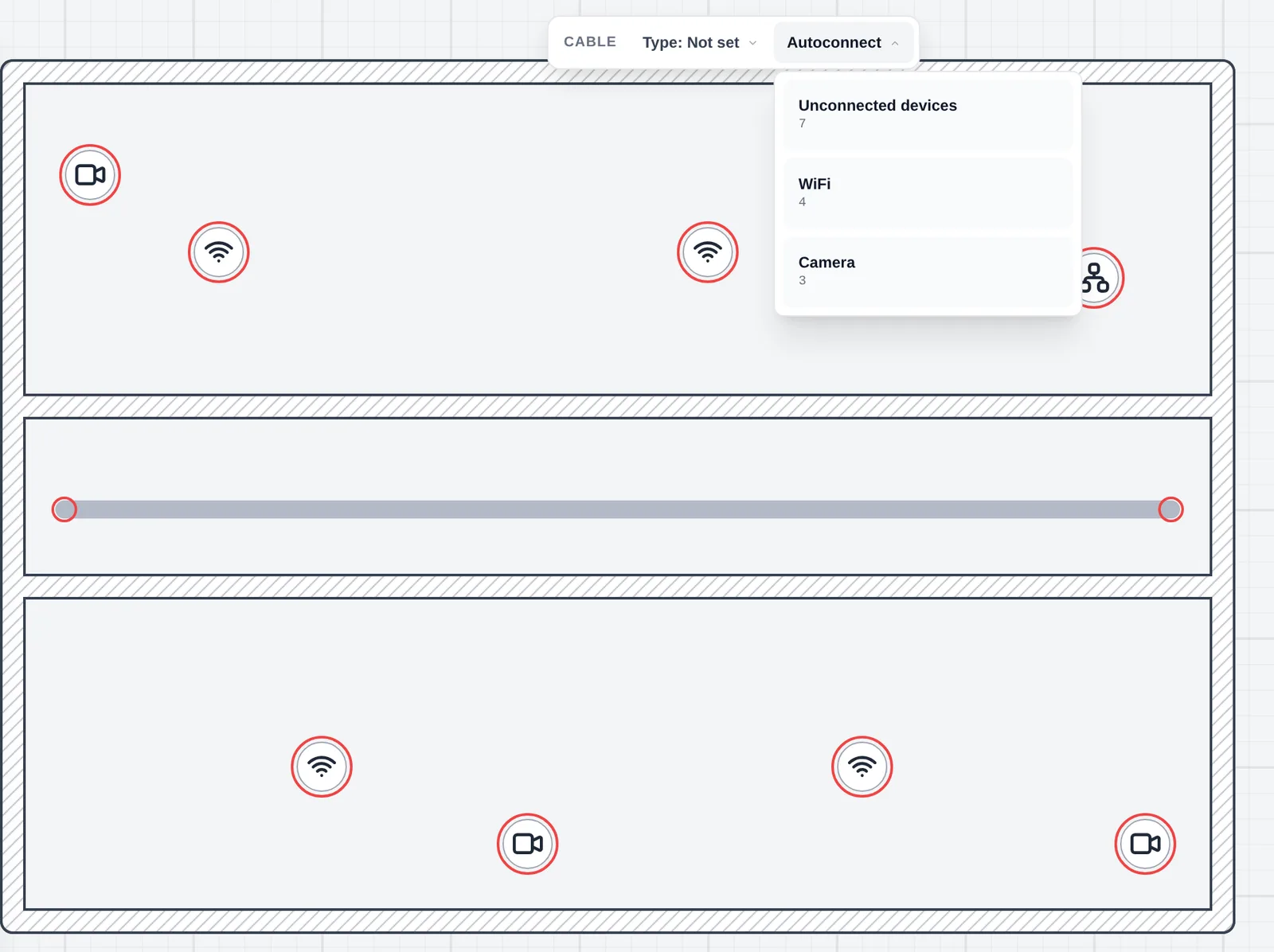
How it works
- Pick the Network Cables tool and open Autoconnect in its bar.
- Choose which devices: every device with no cable yet, or one type, such as access points or cameras. Each entry shows how many devices it takes.
- Click Connect to nearest. Each device is cabled to the switch or rack with the shortest cable run.
- Or click a switch or rack to cable them all to that one instead.
- Change your mind: Esc, Cancel or a click on empty canvas stops it, and one Undo removes every cable from a run.
Devices you select with the Select tool have Autoconnect in their menu too: click the switch to cable them to it.
Shortest by cable, not by distance
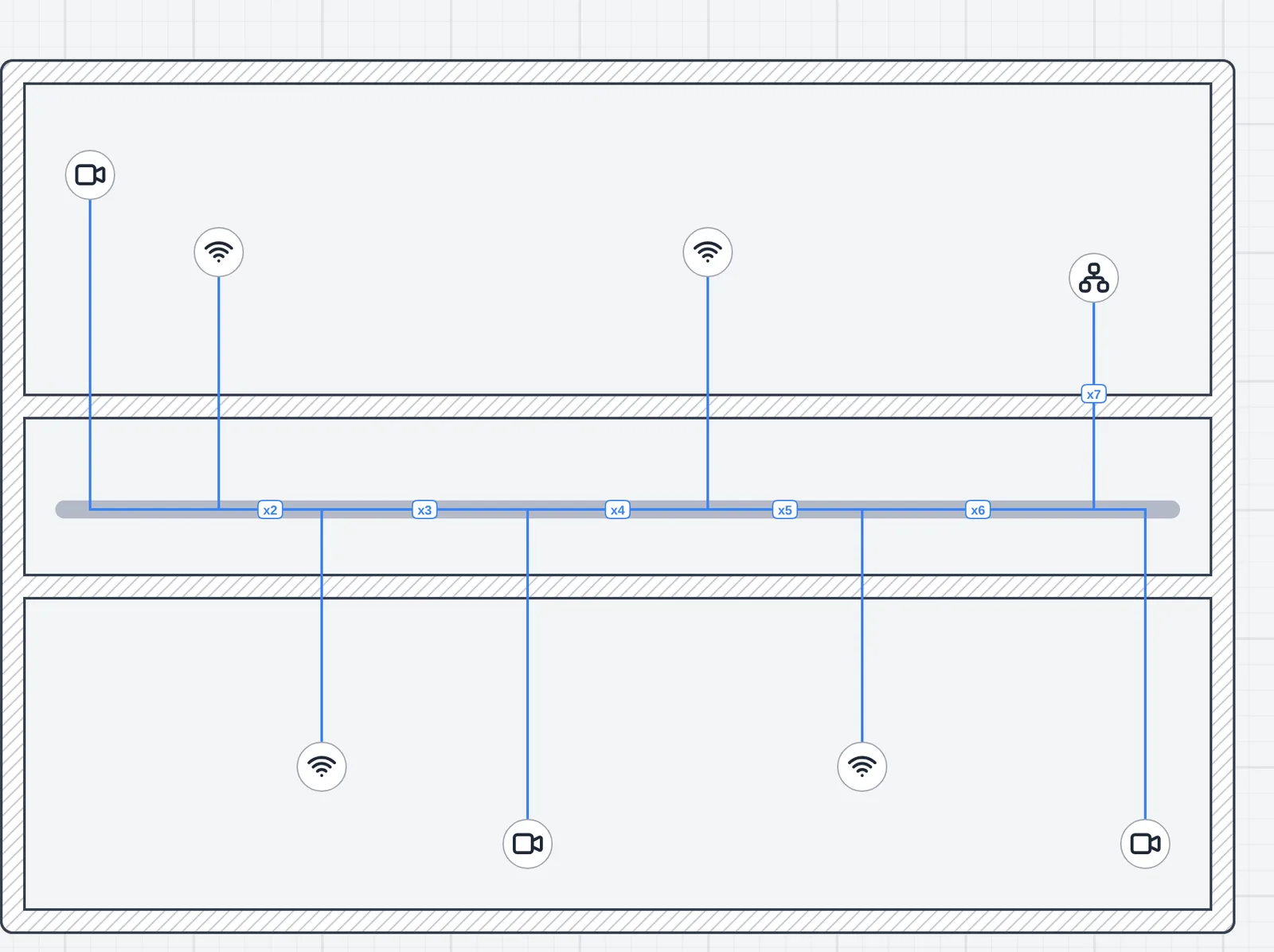
The nearest switch on the plan is not always the nearest by cable. A switch on the other side of a wall can be a few metres away in a straight line and forty along the tray. Autoconnect builds the route to every switch and rack on the floor and measures each one, bends and tray included, then picks the shortest.
- Trays and conduits come first: a run within 2 m of the device or the switch is always used, even when a route outside it would be shorter, because that is where the cable will really go.
- Joined runs are followed: through corners and T junctions, the shortest way along them.
- Entrances are respected: a run with entrances is entered and left at them, as when you draw a cable along it.
- Without a run nearby, the cable takes one bend from the device to the switch.
The cables lie on the runs like drawn ones, so they move when you drag or reshape a tray, and they count in its conduit size and the report.
What it connects
- Sources: access points, cameras, PCs, phones, printers, firewalls, modems, routers and the rest of the library, on the current floor. A UPS is never cabled.
- Targets: switches and racks. A patch panel or a switch mounted in a rack is reached at its rack, and the rack designer is where you pick the port.
- Already cabled devices are left alone by the Unconnected devices entry, so running it again only cables what is new.
A full switch gets a warning
Autoconnect never leaves a device out because a switch is full. When the cables it lays take a switch past 48 ports, it still lays them and tells you which switch to split and into what, such as 48p + 16p, the same suggestion as in the switch’s Connections.
Free and Pro
Autoconnect is on both plans. The cables it lays feed the switch connections and the text report on any plan; the PDF report is Pro.
What it doesn’t do
- It cables one floor at a time and doesn’t go through a riser to a switch on another floor. Draw those cables by hand.
- “Full” means more than 48 ports: the plan’s switches have no port count of their own yet.
- It doesn’t pick the port: the cable ends at the switch or rack, and ports are mapped in the rack designer.